Library Page
The Library dashboard is your view for all assets that you have permission to view and, in some cases, act upon in your system. From the library you will preview, search, collect, and manipulate assets.
LIBRARY PAGE OVERVIEW
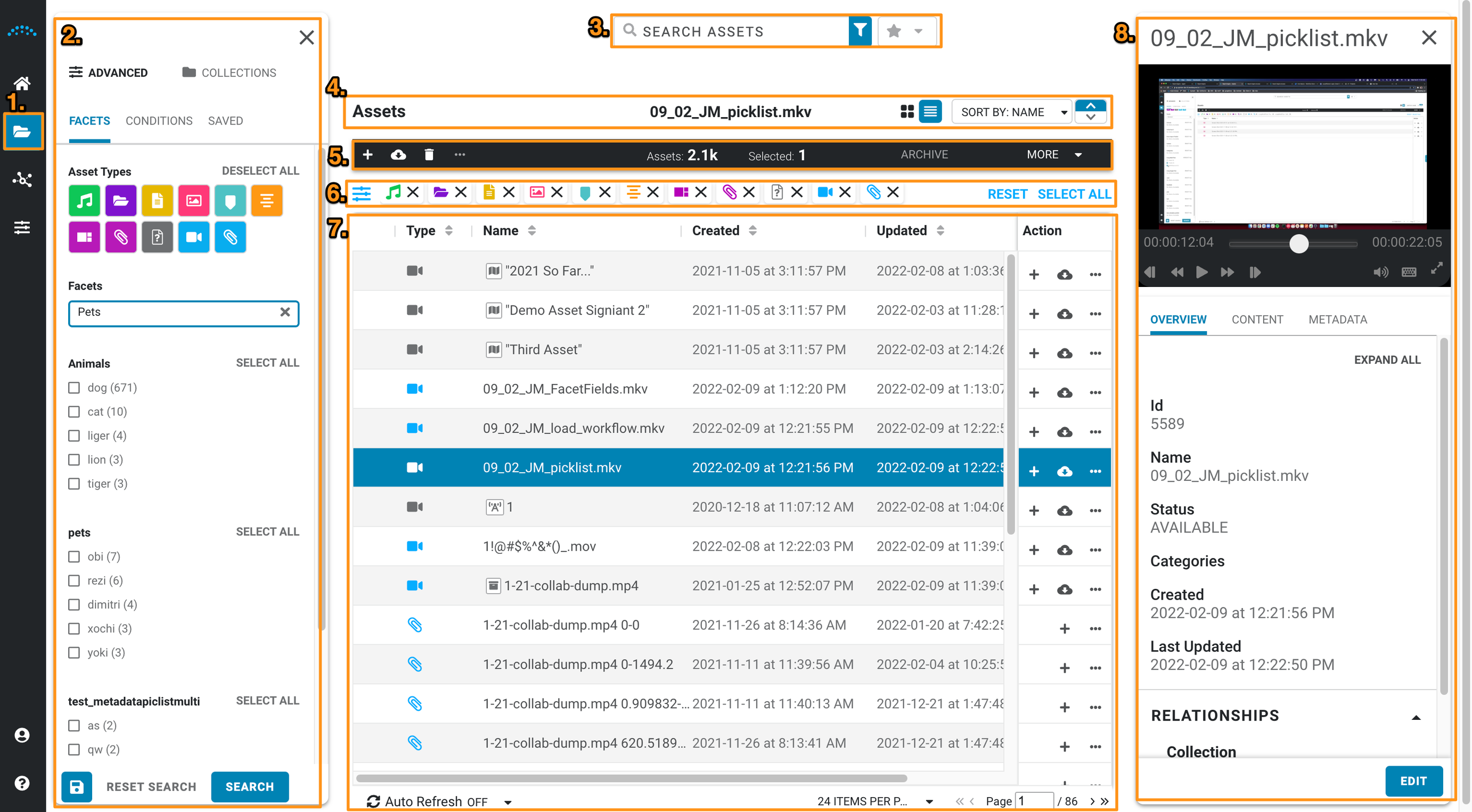
The library page is divided into several areas and panels:
- Library Page Icon: Highlighted to show what page the user is on.
- The advanced search panel displays the last filter that the user was working with and the assets associated with that search, filter, or collection.
- The search bar provides search through the entire system. Search results are displayed in the overview panel.
- A summarized display of the selected assets and sort choices.
- The system and workflow actions available for an asset or group of assets, the number of assets selected, or the number of assets meeting the search or collection conditions.
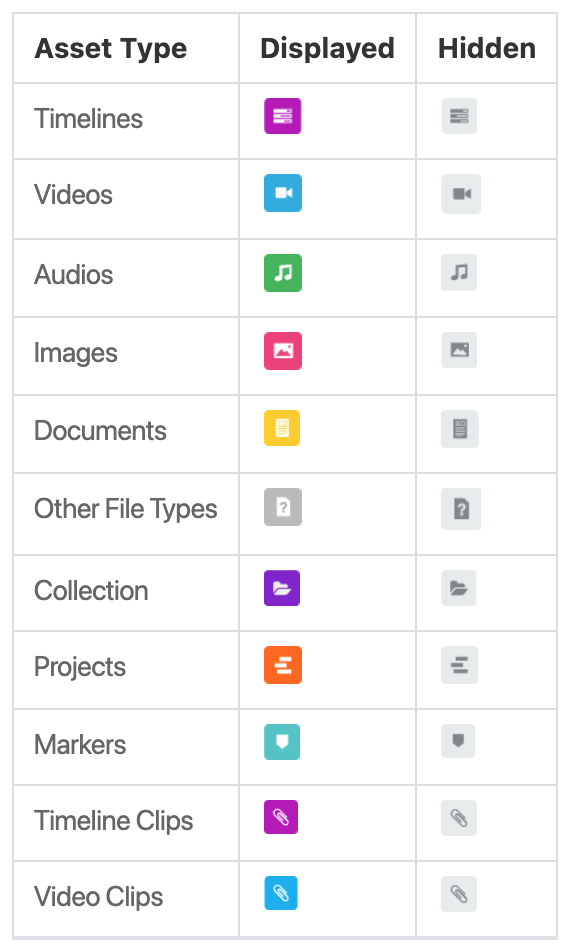
- Displays the asset types matching the current filter settings, and allows the user to narrow results by closing asset chips or resetting all filters.
- Asset records with column or metadata preferences and simple asset-only actions.
- The inspector panel allows you to preview and view/edit the metadata details of the selected asset.
Overview Panel
The overview panel displays all the assets you have access to, based on permissions set by a Reach Engine administrator.
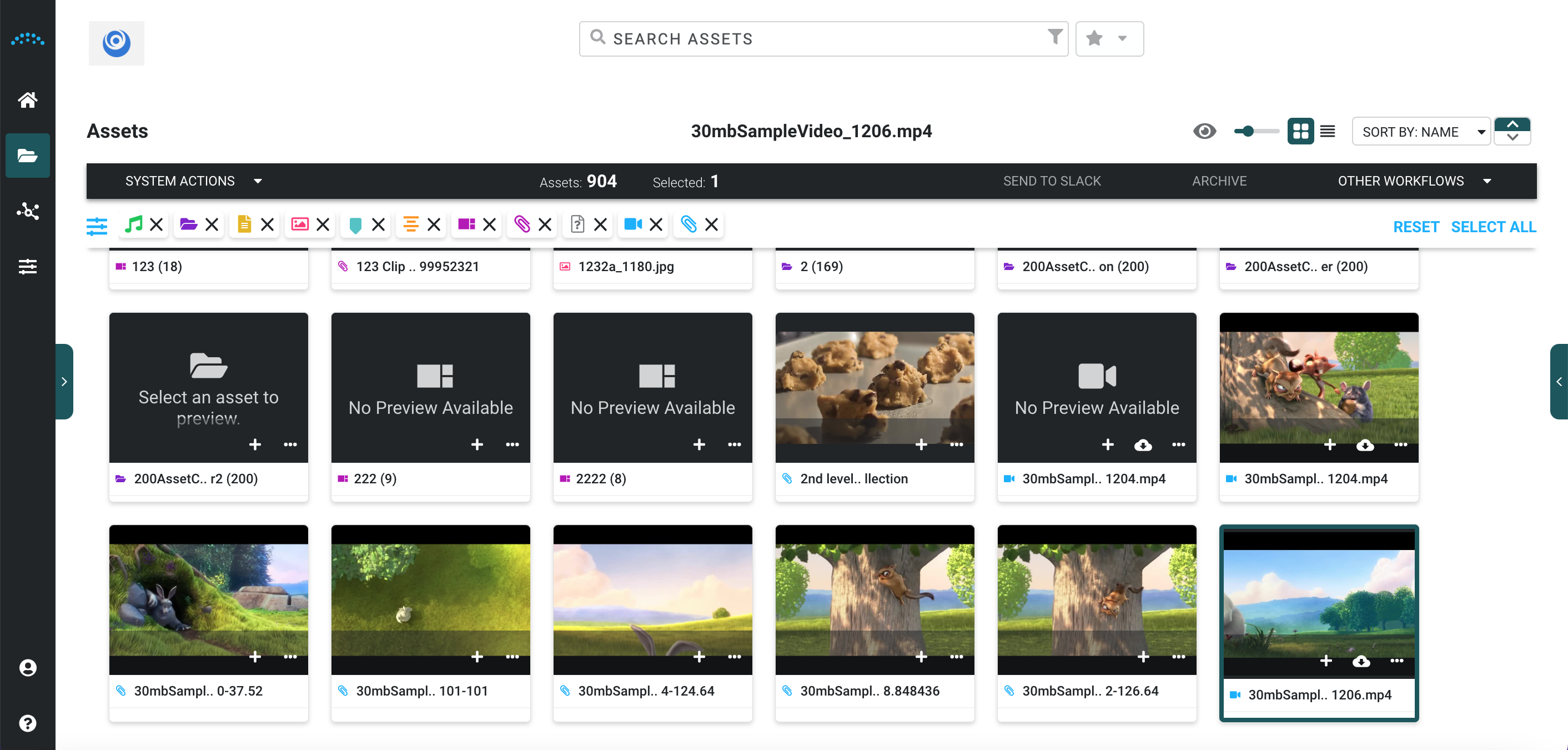
You can select to view assets as a List or a Grid by clicking the view type icons.


Grid View
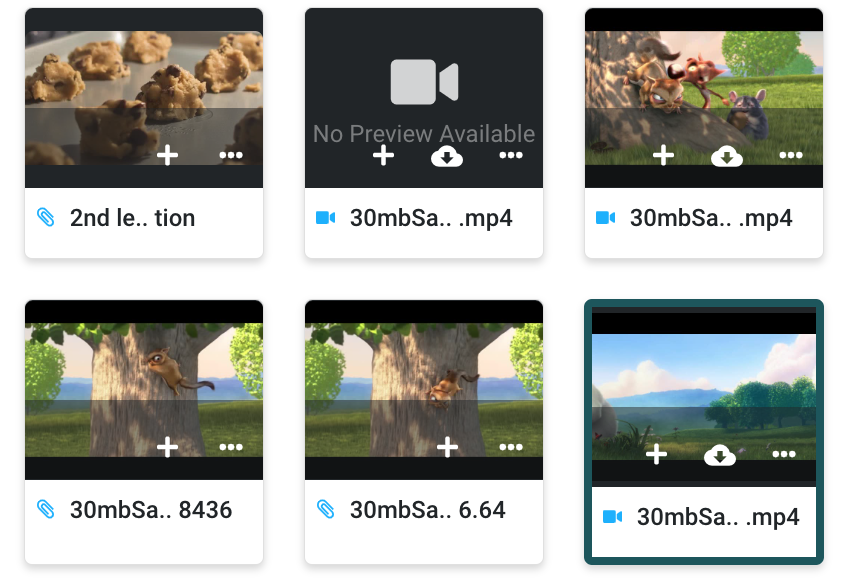
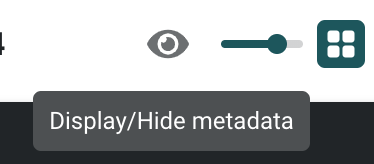
Grid view allows you to set the number of assets displayed on screen by using the sizing slider that appears when you select grid view. Click the eye button to display or hide configured metadata under each thumbnail that is most relevant to your organization.
List View
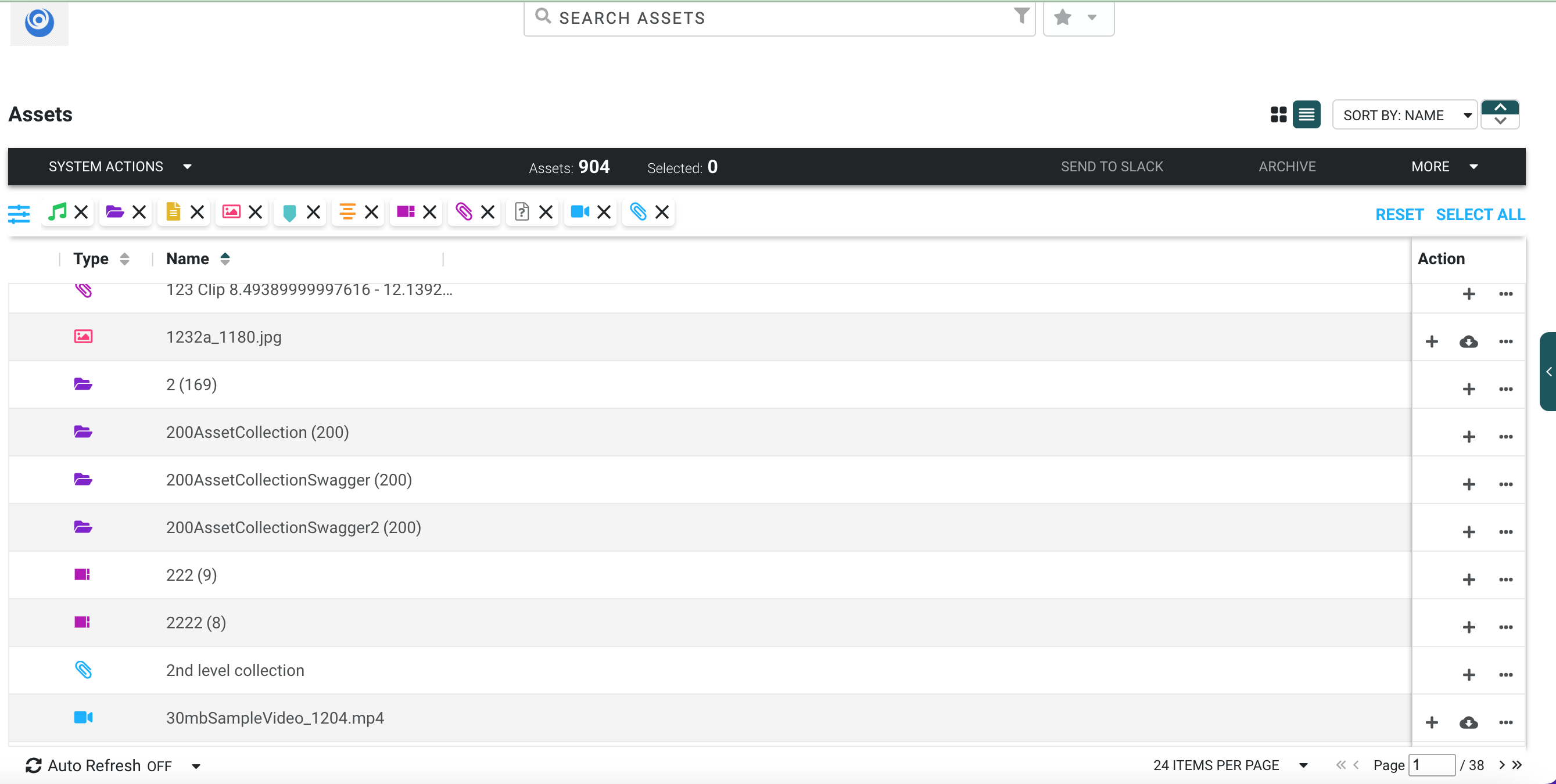
List view provides a minimal view of assets, including their type, name, and allows you to use the Action column to work with assets.
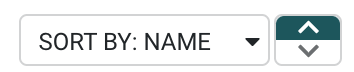
Assets can be sorted by columns by clicking the column header or using sort priority in the preferences section at the top of the list.
You can configure which columns are visible on the User Page.
Advanced Search and Collection Panel
The advanced search panel is where you manage active and saved searches and create and manage collections. It is divided into sections by tabs, sub-tabs, and groups.
The panel can be exposed by selecting the double arrows on the left of the overview section on any page where Search is available.
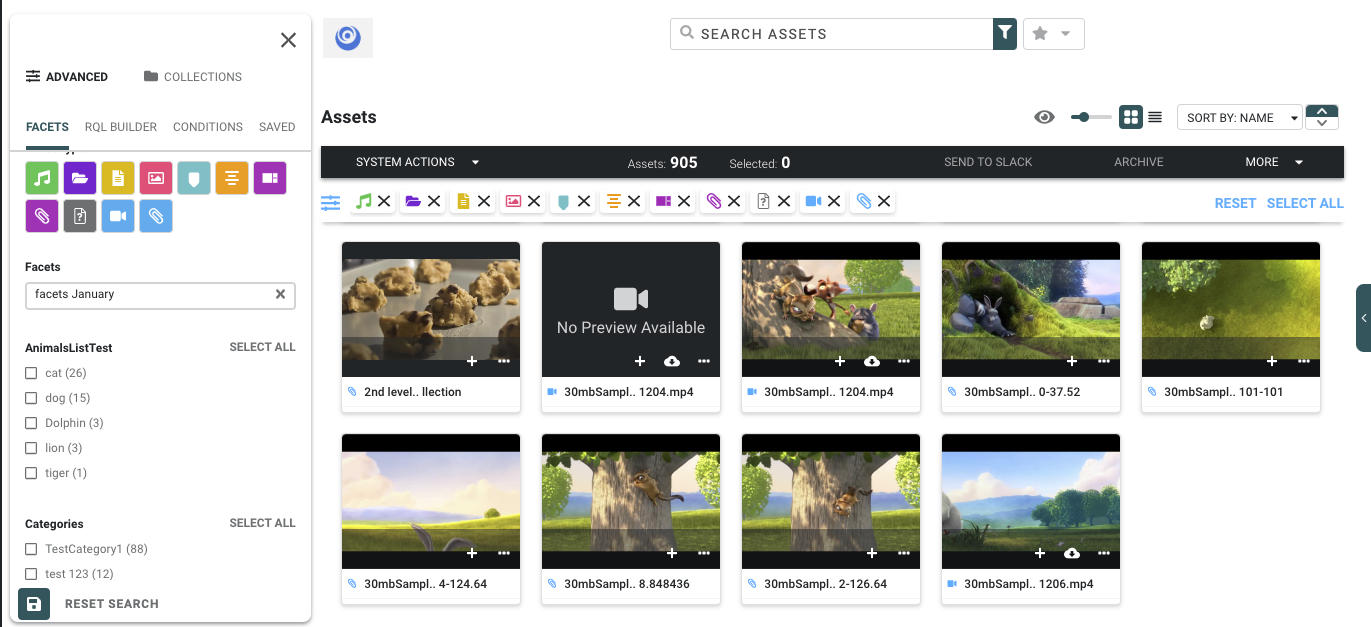
Advanced Search Tab
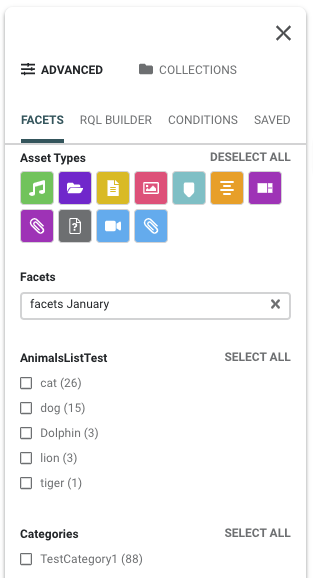
The advanced search tab is where you are able to build complex and specific searches against your Reach Engine to expose the exact content you are looking to work on.
For more information, see the Search and Filter guide.
Collections Tab
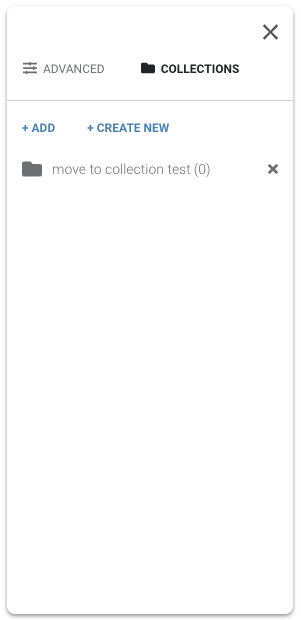
The collections tab allows you to manage the collections you or other members of your organization create when using Reach Engine.
For more information on creating, managing, and using collections see the Collections guide.
Preview and Inspector Panel
The right panel allows you to preview asset content and metadata.
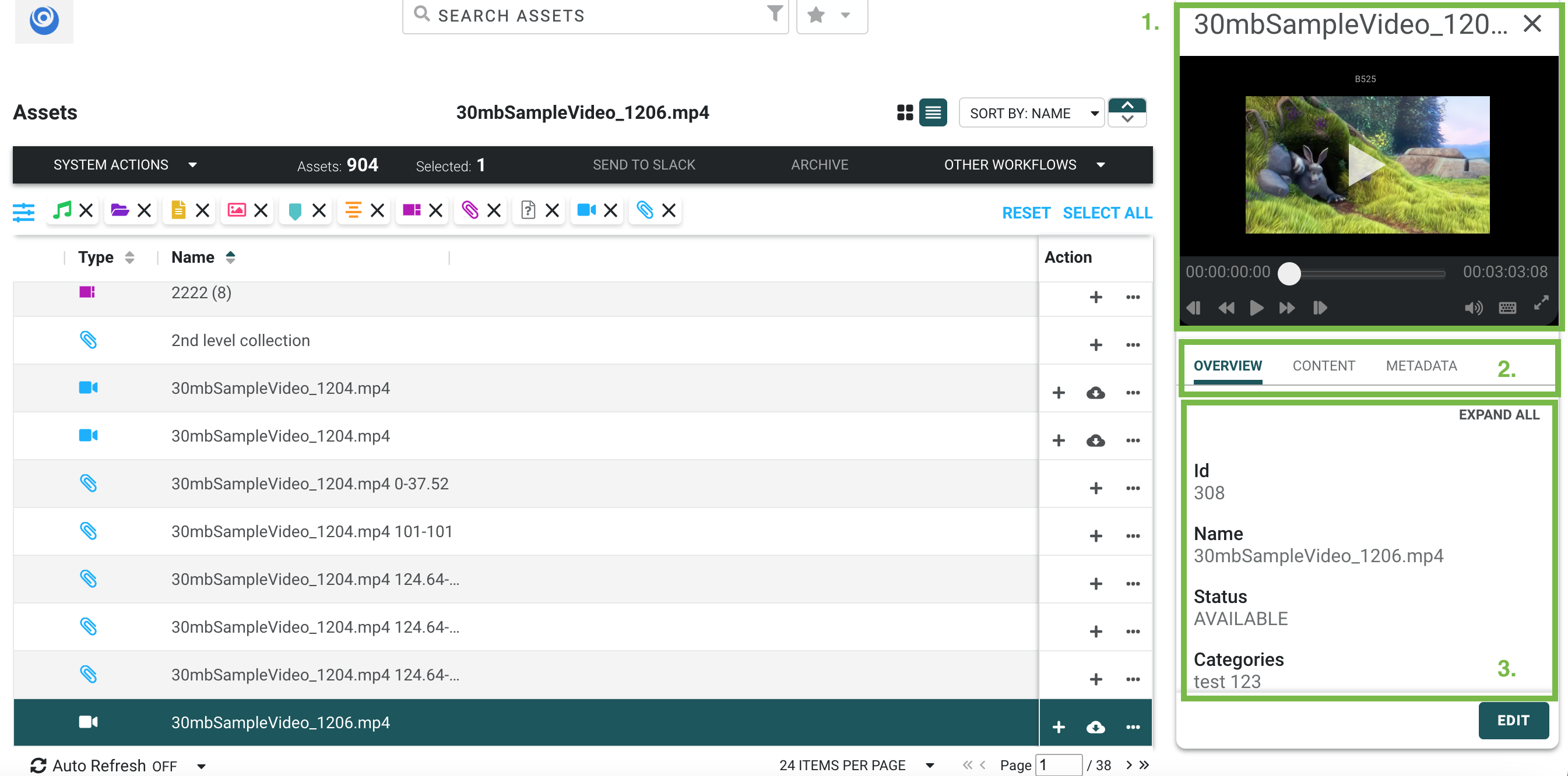
The panel is divided into three sections:
- Preview Player
- Metadata Tabs
- Metadata Groups
Preview Player
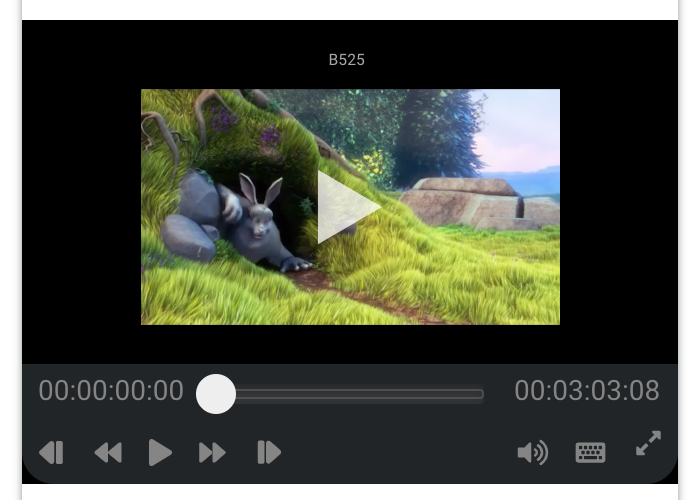
The preview player is a light proxy file player that allows you to scrub through video or audio assets and their clips to ensure you are working with the correct asset.
Metadata Tabs
Tabbing through metadata gives you the ability to review relevant metadata in the context of your organization's structure.
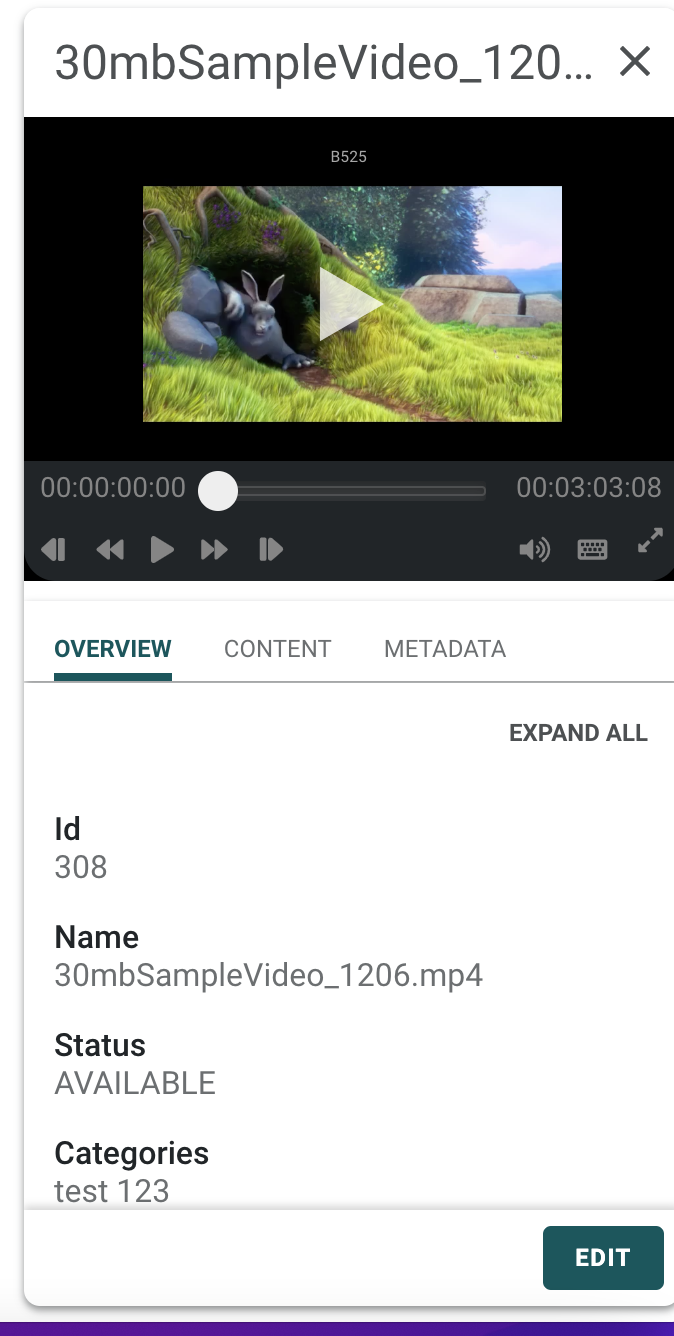
The Overview and Content Metadata tabs are default on installation
Administrators can choose what tabs are shown, how they are ordered, and what groups they contain in the Working with Metadata section.
You have the ability to edit your metadata directly from the preview panel. For more details reference the editing metadata section on the Working with Your Library page of the guide.
Metadata Groups
Metadata groups help you and your team organize similar types of metadata in order to help maintain a robust and healthy metadata schema.
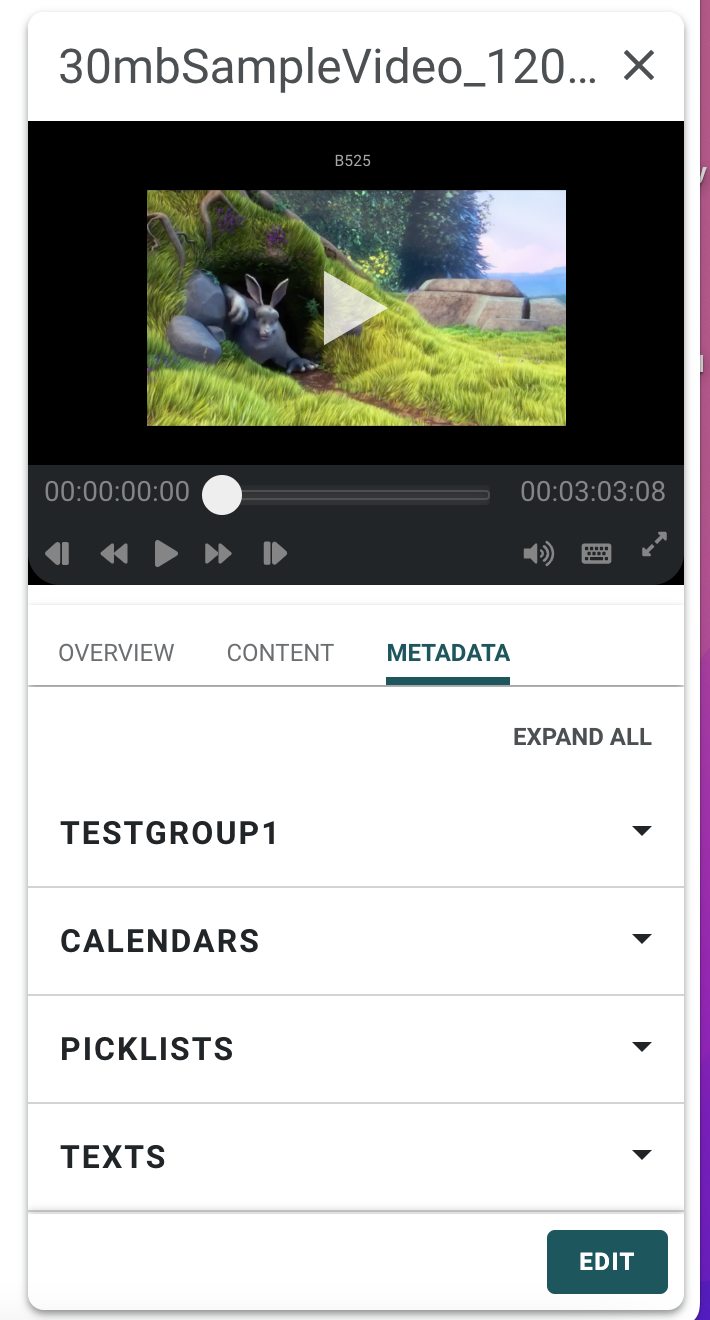
Collapsing and expanding metadata groups is an easy way to quickly preview required or potentially missing metadata for an asset
Select the Edit button at the bottom of the right panel to modify metadata information for the selected asset.
Asset Information and Selection Bars

The asset information and selection bars are your quick reference information center in relation to your assets.
They contain the following important information:
- How many Assets you are currently viewing under a filter or search.
- The number of assets you may have currently selected.
- The available system actions based on the assets you have selected.
- The available other workflows available based on the assets you have selected.
- The range of asset types you have elected to view.
For more information, see the following pages: