Collections
Collections let you organize and group assets together and are accessible by users based on their roles and permissions. Users can search for a collection to collaborate with other users on a group of specific assets, which can be sorted into multiple collections as required.
Collections can also be used by Reach Engine to specify a group of assets for a set of automated actions.
View a Collection
Collections are identified by the Collection icon in the Asset Dashboard. You can search for collection by name, or use the asset dashboard filters to display collections using Advanced Search function.
If a collection has been added to the Collection Palette, you can view all assets associated with a collection, by double-clicking the collection name to open it in single asset view.
Private collections are identified by an eye icon before the file name in List view or in the upper left corner when viewing the list as a Grid.
From within a collection view, you can export and email all images within the collection by selecting Export Collection Images or Email Collection Images.
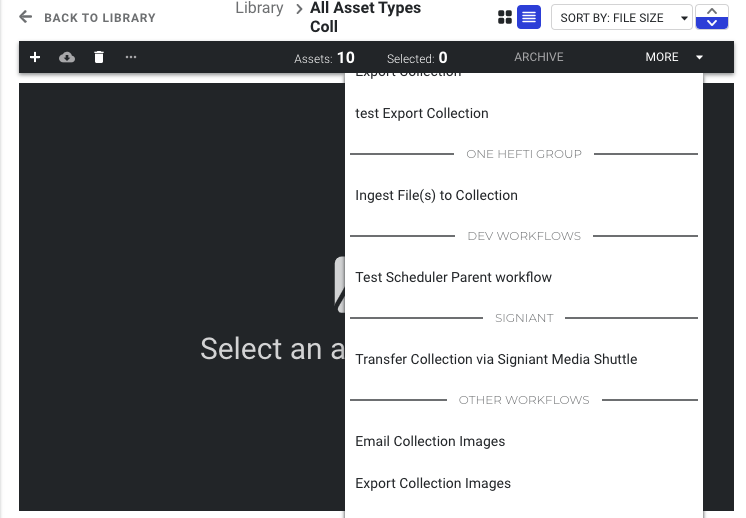
From within a collection view, you can modify the privacy settings of a collection by selecting Edit in the Inspector panel and setting the permission level to Private.
To take an action on a single asset in a collection, click the + icon.
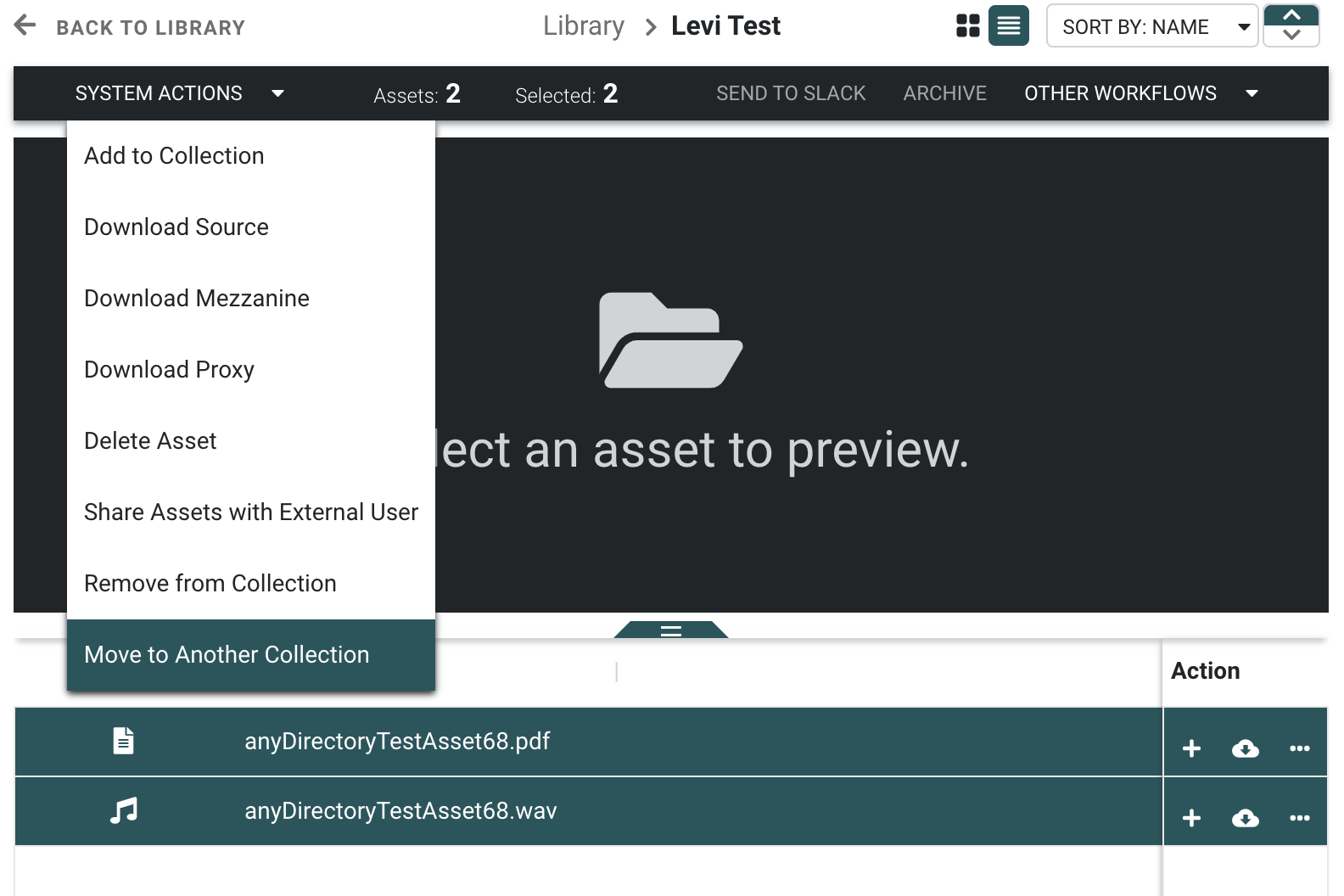
To take an action on multiple assets, select the assets, select the + icon above the preview window, then select the relevant action.
Choose Collection Thumbnail
You can select which image asset you want to use as the collection thumbnail.
- View the collection in single asset view.
- Select an image or video asset from within the collection that you want to use as the collection's thumbnail.
- From the System Actions menu or in the “…” menu on a collection asset member, and select Set as Collection Thumbnail.
Once a thumbnail is set, you can refresh your browser tab to see the new collection thumbnail.
The image or video displays as the thumbnail in tile view on the Assets page and as the thumbnail on the single asset view and unified view preview for a collection.
Collection Palette
Use the Collection Palette to filter assets by a particular collection.
- Open the left panel by using the arrow icon.

- Click to open the Collections page.
- Select the collection name to open the collection in Single Asset View.
To remove a collection from the palette, select the X to the right of the collection name.
Add Assets by Dragging and Dropping
When the Collection Palette is open, you can drag and drop one or more assets directly into a collection listed in the Collection Palette. Select the assets you want to add to the collection, then click and drag onto the collection in the Collection Palette.
Add Assets to an Existing or a New Collection
To add assets to another collection:
- From the Asset dashboard, select one or more assets.
- Select Add to Collection:
- If one asset is selected and you are in List view, select the + icon to the right of the asset name.
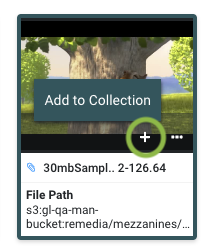
- If one asset is selected and you are in List or Grid view, select the + icon to the right of the asset name.
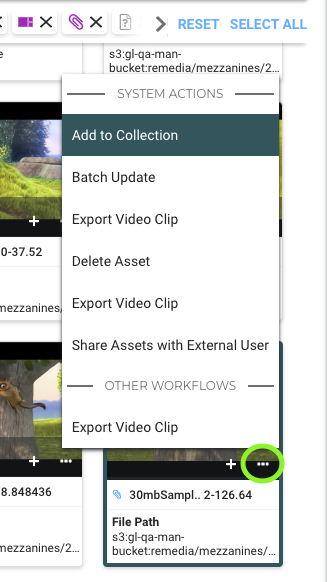
- If multiple assets are selected, select the System Actions menu in the upper left of the asset list.
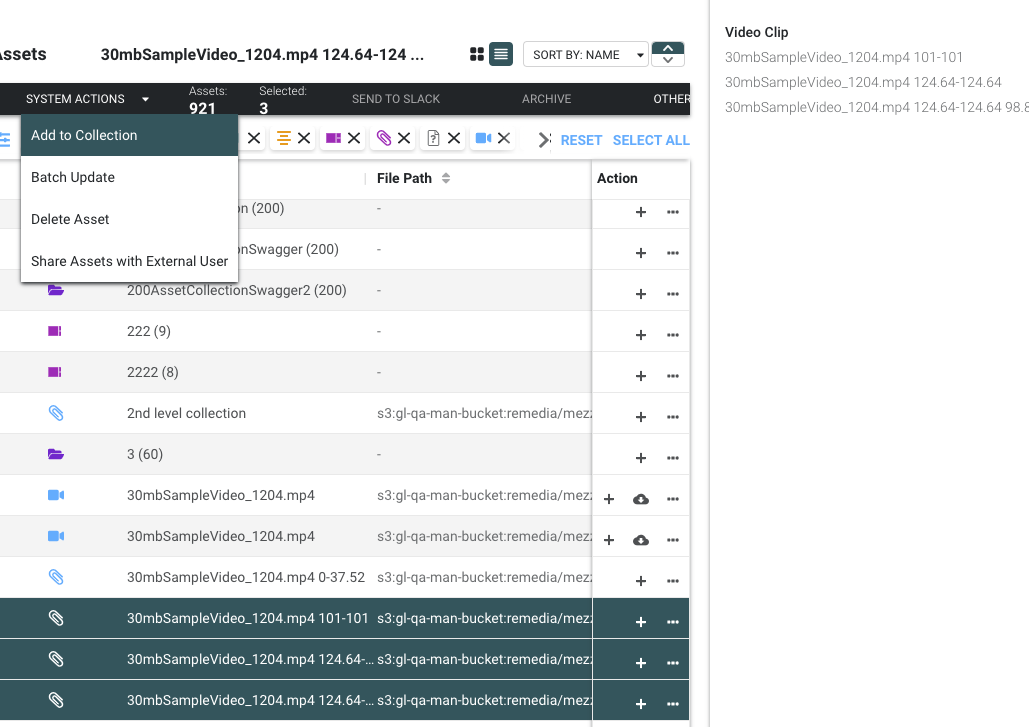
- If one asset is selected and you are in List view, select the + icon to the right of the asset name.
- Review the selected assets in the inspector panel and with the selected count number at the top of the overview section.
- Select the Collections box and select a collection to add the asset, and click Confirm.
To add the asset to a new collection:
- From the Asset dashboard, select one or more assets.
- Select Add to Collection.
- Select New Collection.
- Enter a collection name.
- Select any associated categories.
Note: To create a collection that only you can see, select Private Collection.
- Click Confirm.
Add an Existing Collection to the Palette
Add an existing collection to the Collection Palette:
- Open the left panel by using the arrow icon.
- Select the Collections tab at the top of the panel.
- Select + Add in the upper right of the panel.
- Select which collection you want to add.
- Select Confirm.
Create a New Collection in the Palette
To create a new collection to show the Collection Palette:
- Open the left panel by using the arrow icon.
- Select the Collections tab at the top of the panel
- Select + Create New in the upper right of the panel.
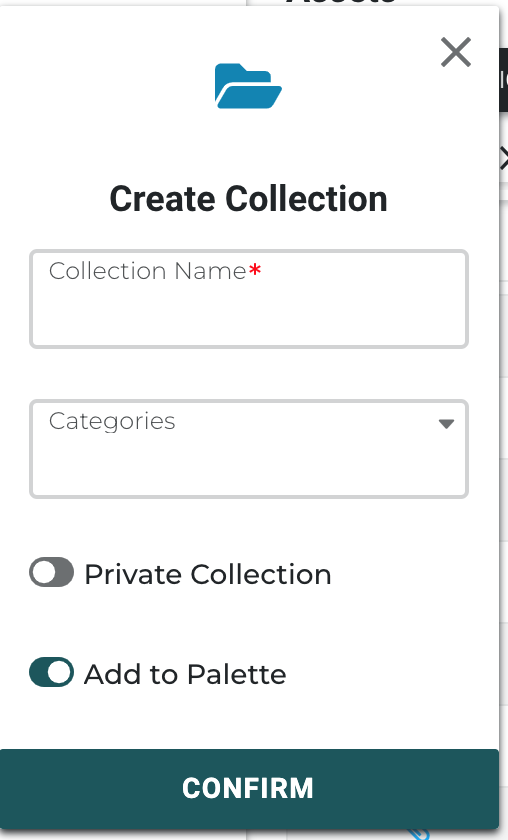
- Name your collection
- Add the categories you wish to apply
- Toggle on if you do NOT want other users to view your new collection
- Toggle on if you would like your new collection to remain shown in the collection palette.
- Select Confirm.