Working with Metadata
Metadata is one of the the most powerful tools you can leverage in your Reach Engine. The possibilities are near endless on the context that you can provide to easier locate, manage and add context to your asset library. Metadata in Reach Engine is divided into two separate types.
Asset Metadata - highly customizable
Technical Metadata - strict file and database metadata that is associated with the “asset record”
For Administrators Metadata management experience has been redesigned to consolidate multiple pages and tabs from the old user interface into one consistent experience, thus decreasing the time it takes to manage metadata. This redesign increases reliability of results when searching across fields, provides easier sorting across multiple field properties (field name, field key, field type, and Inspector panel usage), provides contextual Actions menu for editing fields and downloading picklist values, and adds a full page column view for picklists, which makes it easier to manage large picklists.
- Picklist Fields can be edited in single page view by selecting the link in the Name column from the Fields list. You can also edit fields by selecting the pencil icon in the Action column to open the right side curtain.
- Administrators can import and export picklist values from the either the single page view or the right side curtain.
- On the Metadata Fields page, the Searchable toggle has been renamed Boost, and Search Priority has been renamed Boost Priority. These values display in columns on the Metadata Fields page for Administrators.
Asset Metadata
Asset metadata is any metadata that you have associated with an ingested Reach Engine asset. Metadata can be applied a number of different ways.
- Directly logging metadata on an asset as determined by category
- Metadata applied through a form selected on ingest
- Metadata created through automated pipelines and workflow
Technical Metadata
Unless manipulated through custom workflow technical metadata is not readily available for simple searching and most customers use RQL query methods when needing to search and locate assets based on deep technical metadata. Reach Engine asset types hold different technical metadata association depending on the asset type. Therefore, there are different sets of RQL queries that you can run against an asset depending on its type. Herein you will find a breakdown of every technical query possible to each asset type based on the information that is stored in Elastic Search for each asset type!
- Number Queries
- Asset ID,Frame Rate,Duration,Channel Count,Sample Depth,Sample Rate,Checksum,File Size (bytes), Height, Width, Bitrate, Start Timecode, End Timecode
- Strings / Text Queries
- Source File Path, Source File Extension, Mezzanine File Extension, Proxy File Extension, Video Container, Codec
- Aspect Ratio Querries
- example:16:94:3
- Project Type Querries
- example: Premiere
- Picklist Querries
- Status
- Available / Archived / Locked
- Time Format (Timelines)
- SMPTE
- Time Of Day
- Timecode Format
- Drop Frame (Timeline)
- Non Drop Frame (Timeline)
- Drop Frame (Video / Clip)
- Non Drop Frame (Video / Clip)
- Status
Viewing metadata in your Reach Engine
Metadata is visible in several places as you interact with Reach Engine. These preferences are set when you Configure View from the User Page in the left hand navigation
- In your overview panel list

- In your asset tile view
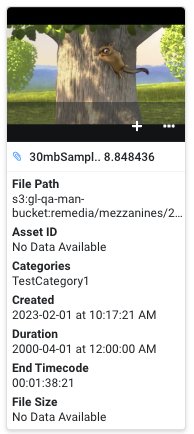
- In your inspector panel
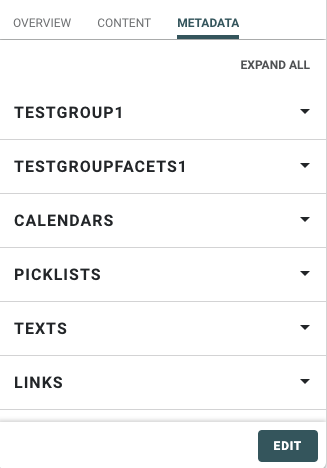
💡When configuring your metadata place yourself in the seat of your end users
- How would metadata be grouped to make it easier for them to find and understand
- How am I naming my metadata fields, is the name human readable?
- What metadata are my users accessing often and how can I surface that metadata at the top of their visual field
- Refine your metadata processes as you expose new teams, types of content, and new work processes