Editing Metadata
From the asset page
- Double click asset from the library or home page.
- From the Single Asset View select EDIT from the right curtain Inspector Panel.
- Click Save.
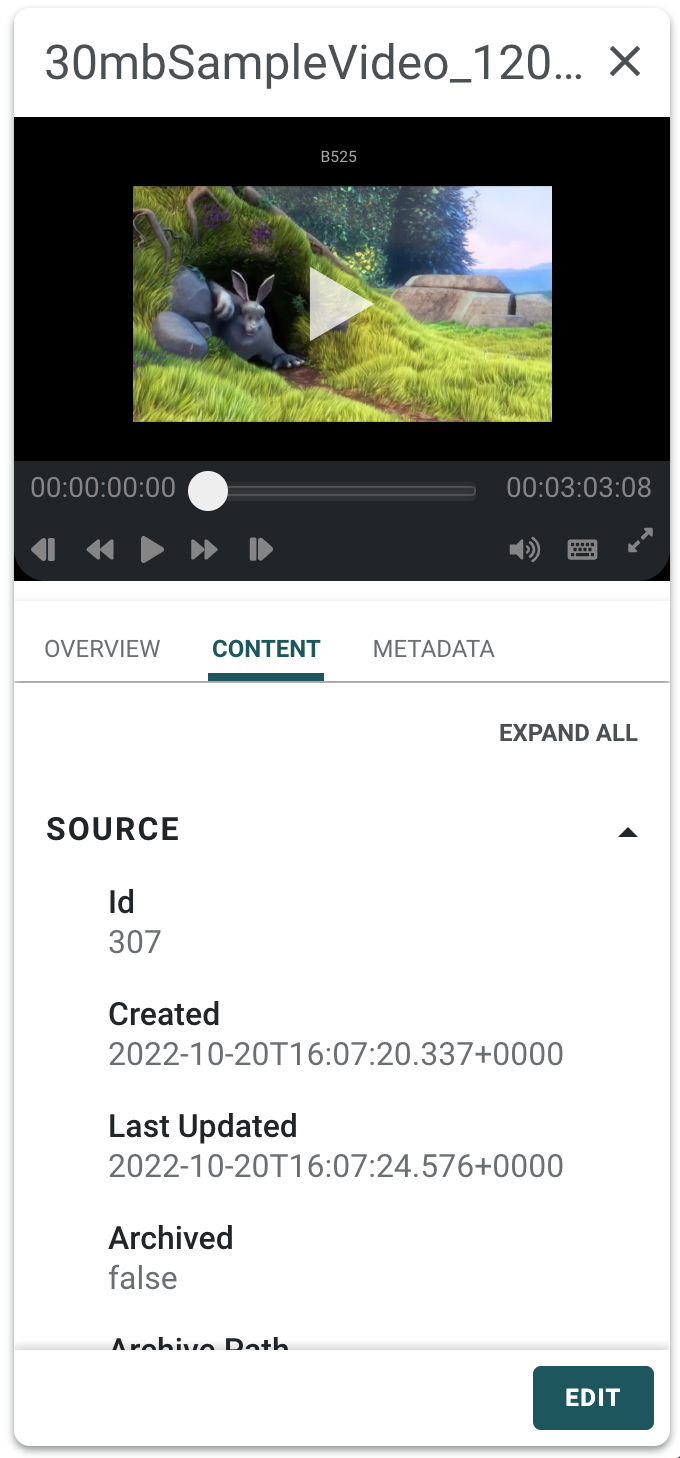
Editing from the right curtain Preview Panel
- Select the asset that you would like to edit metadata for and click Edit.
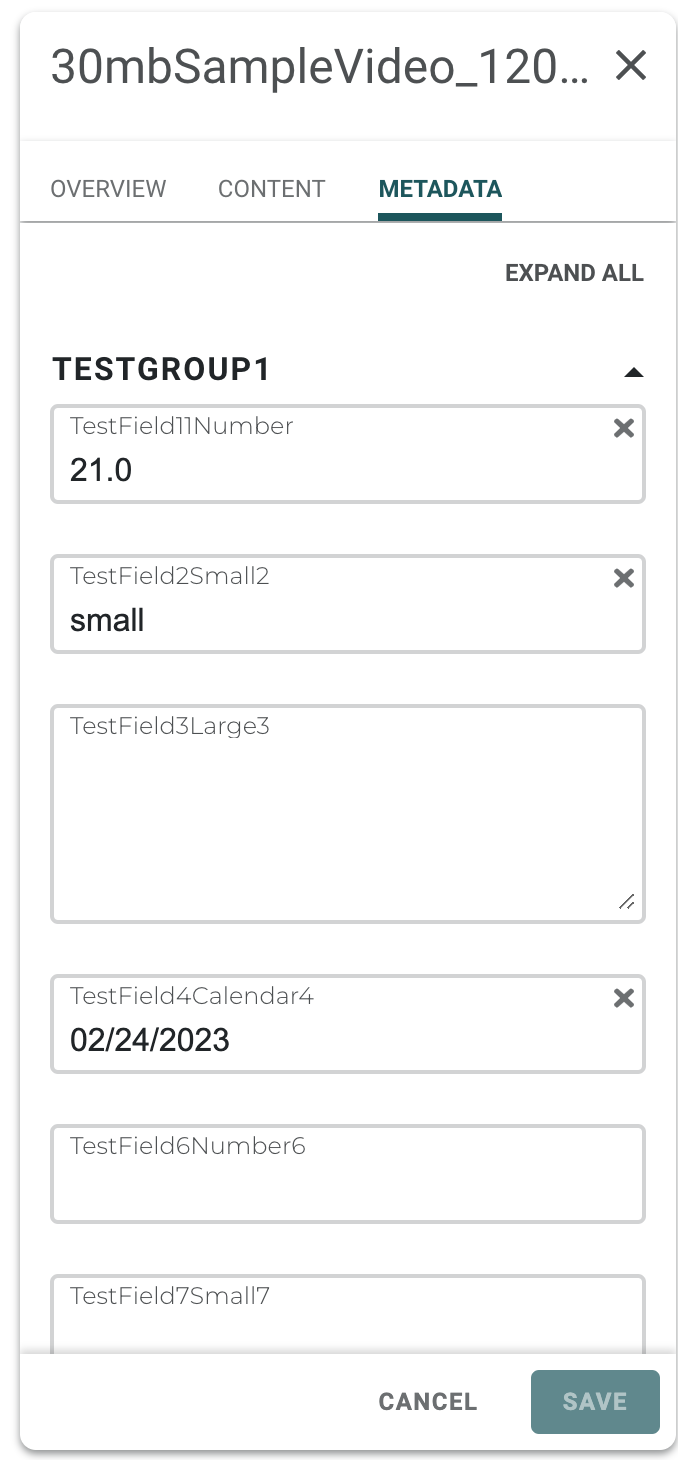
2. Select the fields that you would like to update
- You may not have permission to edit all metadata fields. Metadata editing is set in the roles permission set up.
- Technical metadata is not editable.
3. Select Save.

Batch Updating from System Actions Menu
Metadata can be edited in batch from the System Action menu if more than one asset needs to be update in a single action. Please reference the Working with Multiple Assets portion of the guide.
Updating Metadata with a custom workflow
You may have a custom workflow that updates specifically outlined metadata. Custom workflow are located in the Other Workflow dropdown menu located at the top of the page.
- Select one or more assets.
- Select Other Workflows.
- Scroll down to select the custom workflow that you wish to initiate.
- Start the workflow.