Workflows Page
The workflow page provides you a comprehensive look at how the Reach Engine workflows are running in the system. From this page you are able to view state and status and drill into workflows to gather relevant information.
Workflow Page Overview
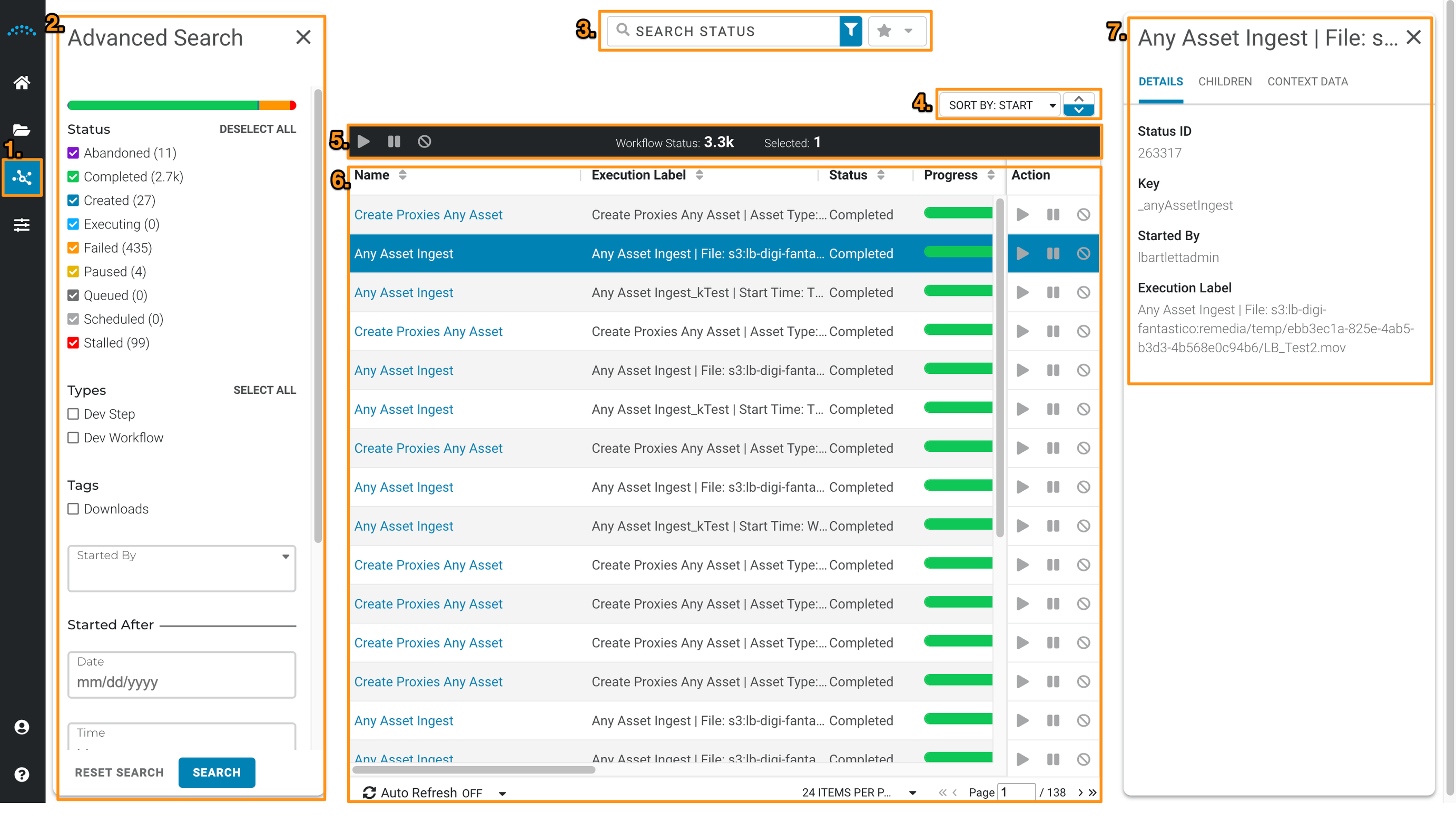
- Workflow Page Icon: Highlighted to help signify what page the user is on.
- Advanced Search: Allows users to select which Statuses, types, and narrow displayed workflows.
- Search Bar: Google-style search, selecting filter icon opens/closes Search Tab, Star Dropdown shows saved and shared searches.
- Sort By: Allows User to sort their displayed workflows.
- Workflow Action Bar: Allows users to play, pause, or abandon a workflow, displays total amount of workflows in current search criteria, and displays the selected amount of workflows.
- Workflow Display: Allows Users to select individual or multiple workflows to view or run actions on, turn off/on Auto Refresh, select the number of assets displayed in a page, type in the desired page, or use arrows to navigate to previous/later pages.
- Workflow Inspector Panel: This allows the user to see details on the selected workflow or a list of workflows selected (if the user has selected multiple).
Sort and Filter Workflows
You can filter the workflow list by clicking in the Search Term field. A Search modal opens to refine your search.
- Enter a search term to filter the workflow list by a search term.
- In the Status area, all possible statuses display with a number indicating the events in the list with that status. Uncheck a status type to remove it from the list. To add a status after it has been removed, check the status box to add events with that status back to the list.
- Administrators have additional search options listed below the Status checkboxes.
- To return workflows that contain Dev Step and/or Dev Workflow, select the appropriate Types.
- To return workflows started by a particular person, in the Started By field, choose one or more names from the list or begin typing the name to filter results.
- To return workflows started before or after a date and time, enter your search criteria in Started After and/or Started Before. If only the time value is entered, the current date is used. If only a date is entered, 12:00am is used as the time.
- Select Search once you have defined your search criteria.
View Workflow Details
Select a workflow from the list to display that workflow's subflows and steps in the middle column. The right column displays details about the workflow (such as status, start date, and execution label) and context data defs associated with the workflow. If you select a subflow in the middle column, the right column displays details about the subflow.
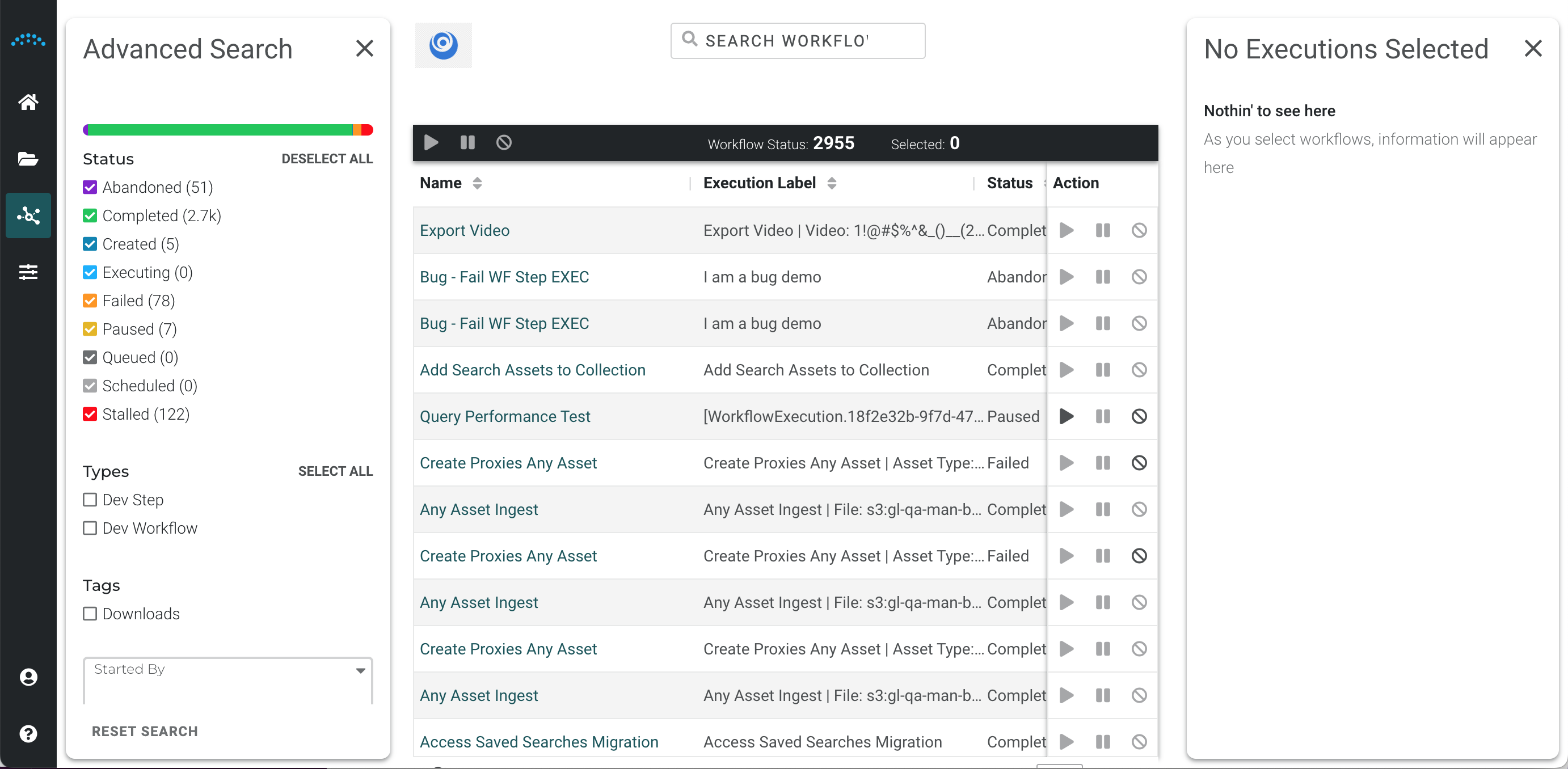
- Select the Details or Context Data tab in the right sidebar to display information about a workflow.
- An arrow and number to the right of the subflow name indicates the number of child steps that the subflow contains.
- If a subflow has children, select the subflow in the middle column, then click Children in the right column to display the list of children in the right column. In the following image, the child steps for the apply sidecar metadata subflow display in the right column.
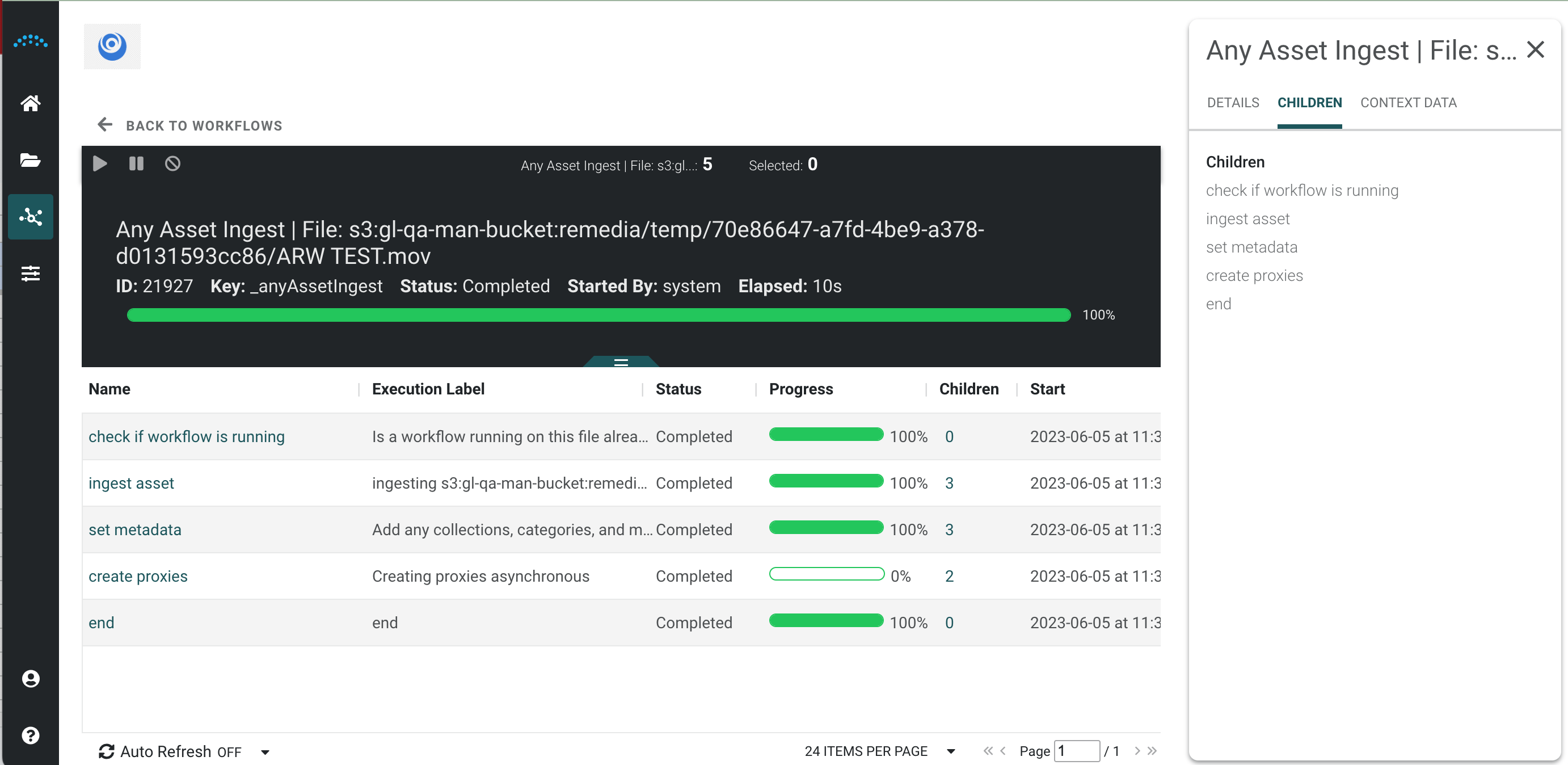
- To drill down into a subflow's children, find a subflow with children in the middle column. Click the arrow and number icon to display the child steps in the middle column.
- Select a subflow child step in the middle column to display that step's details or context data defs in the right column.
- Workflows with a Scheduled status display the workflow ID, workflow name, and who initiated the workflow. Admins can cancel a Scheduled workflow by selecting it, selecting the workflow Actions menu then choose Abandon.
Resume / Abandon a Workflow
If a workflow stalled, failed, or paused/abandoned, you can choose to abandon or resume the workflow. Select the failed workflow, select the workflow Actions menu then choose either Abandon or Resume
(available if the chosen workflow was stalled or paused/abandoned). You can also resume a workflow by clicking the play button to the right of the workflow name in the workflow list.
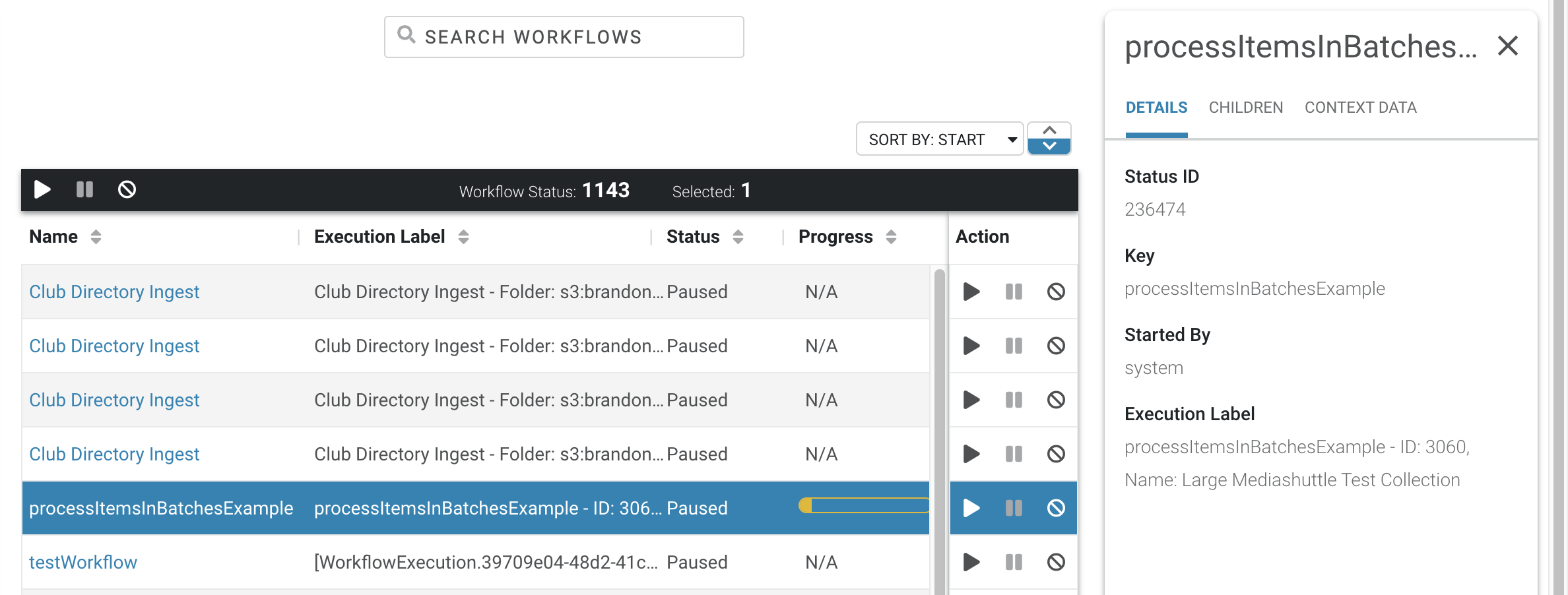
To abandon or resume multiple workflows, press and hold the Shift key while selecting workflows then select the Abandon/Resume icon at the top right of the workflow status list. When multiple workflows are chosen and resumed, if some workflows cannot be resumed, they are skipped but all others are resumed.
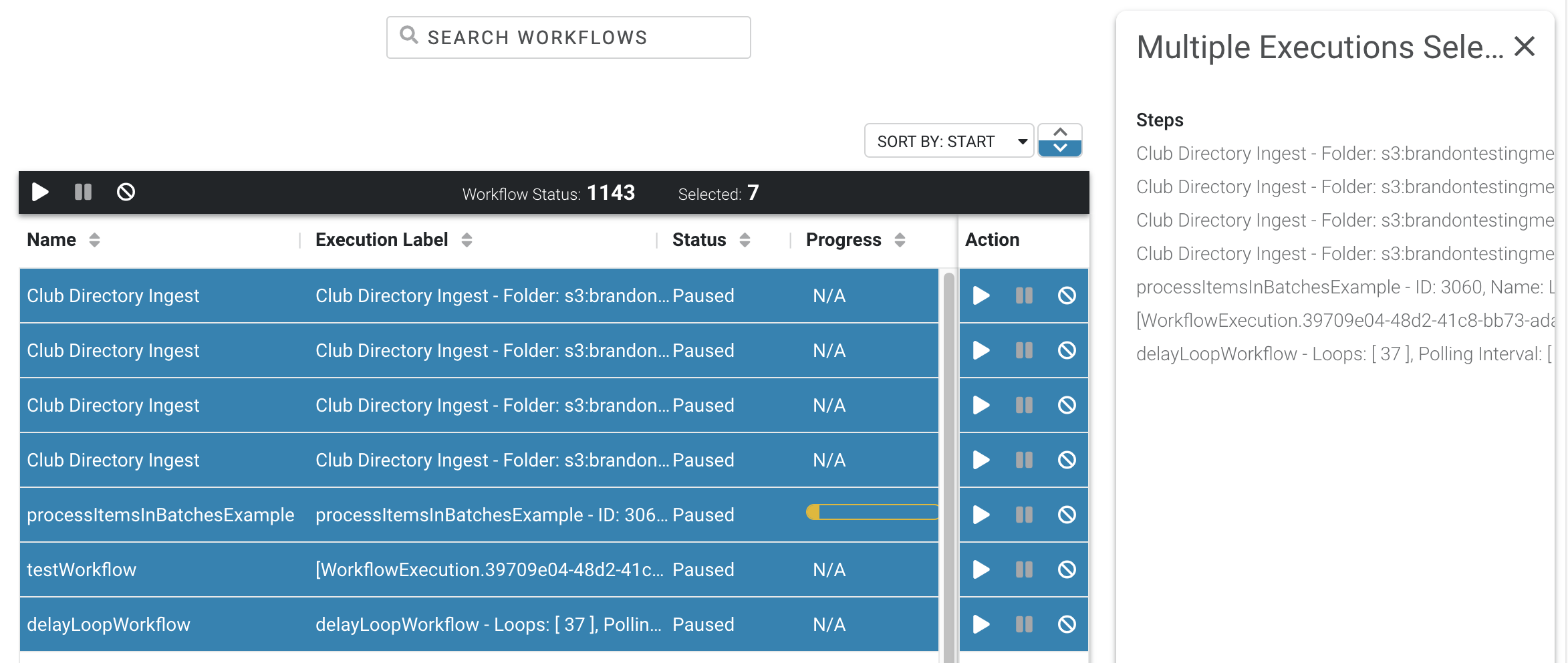
By choosing to abandon paused, stalled, or failed workflows that you don't need to track, your workflow dashboard stays clean.
Workflow Information
The right curtain on the Workflow page allows admin and workflow authors to view in-depth information about workflows. To view these details, select a workflow row by clicking somewhere in the row other than the Name. When you select the Name, it opens the Single Workflow View.
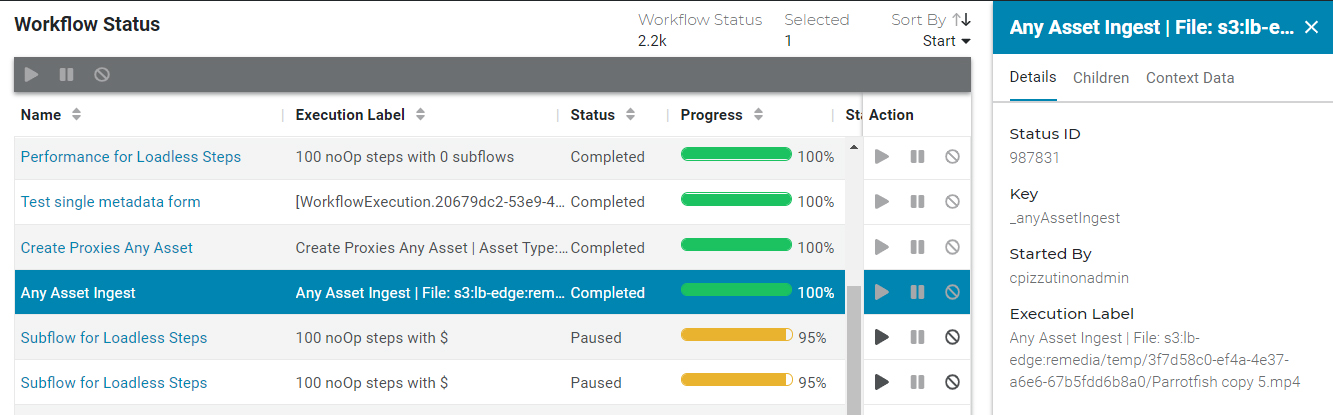
- The Details tab includes status ID, type, key, started by, and a link to download files (if applicable).
- The Children tab includes status ID, parent status ID, type, name, started by, download files (if applicable), and class.
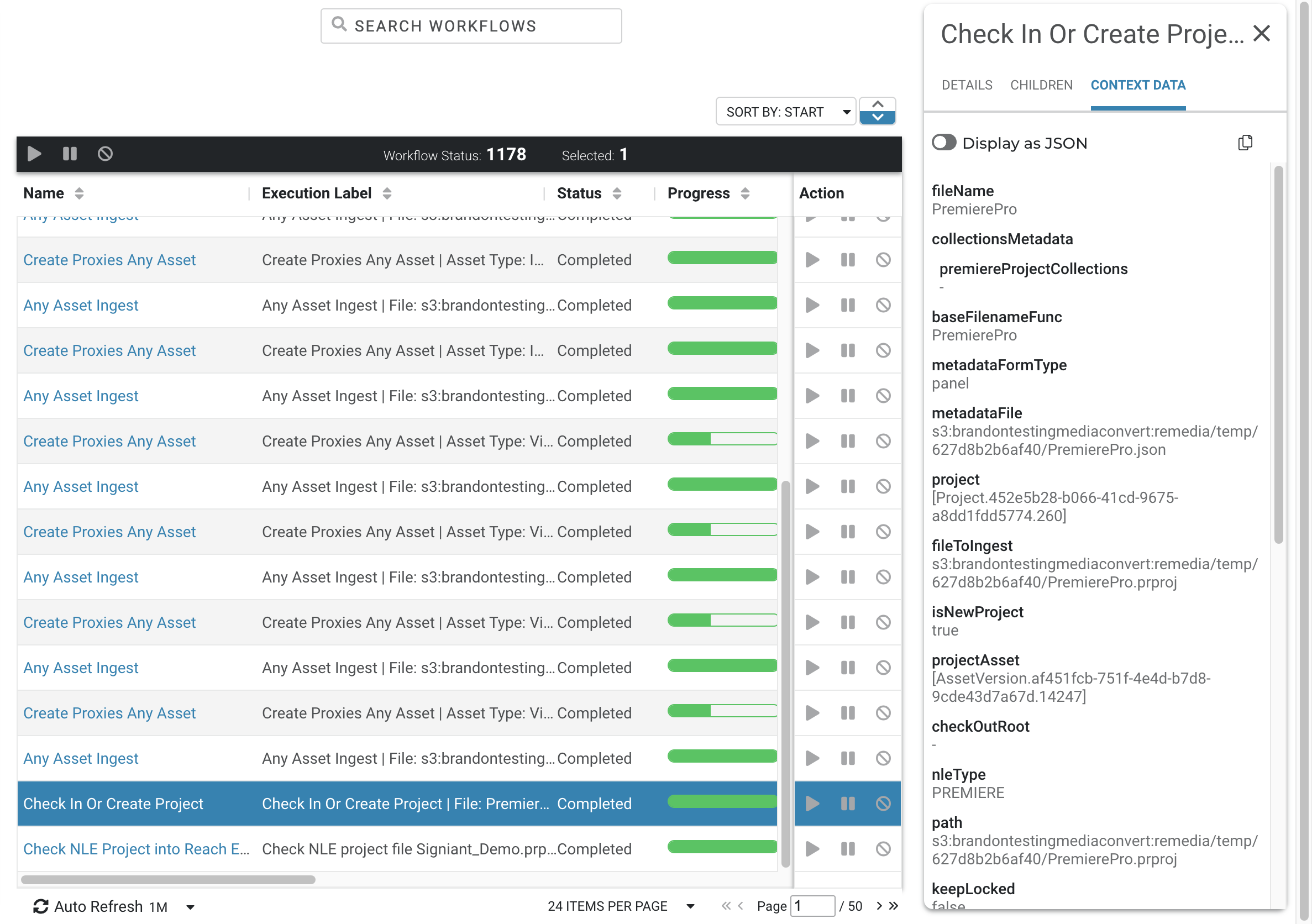
- The Context Data tab displays information produced by the workflow or subflow selected. You can view this data as Key Value pairs (default), or select the JSON slider to display as JSON. In either view, select the Copy icon to copy the Content Data to the clipboard.
Single Workflow View
Click the workflow Name link or double-click a workflow row to open it in Single Workflow View. From this view, child workflows are listed. Select a row to display the child's information in the right curtain. To dive further into a child's details, click the Name or Children link or double-click a row.
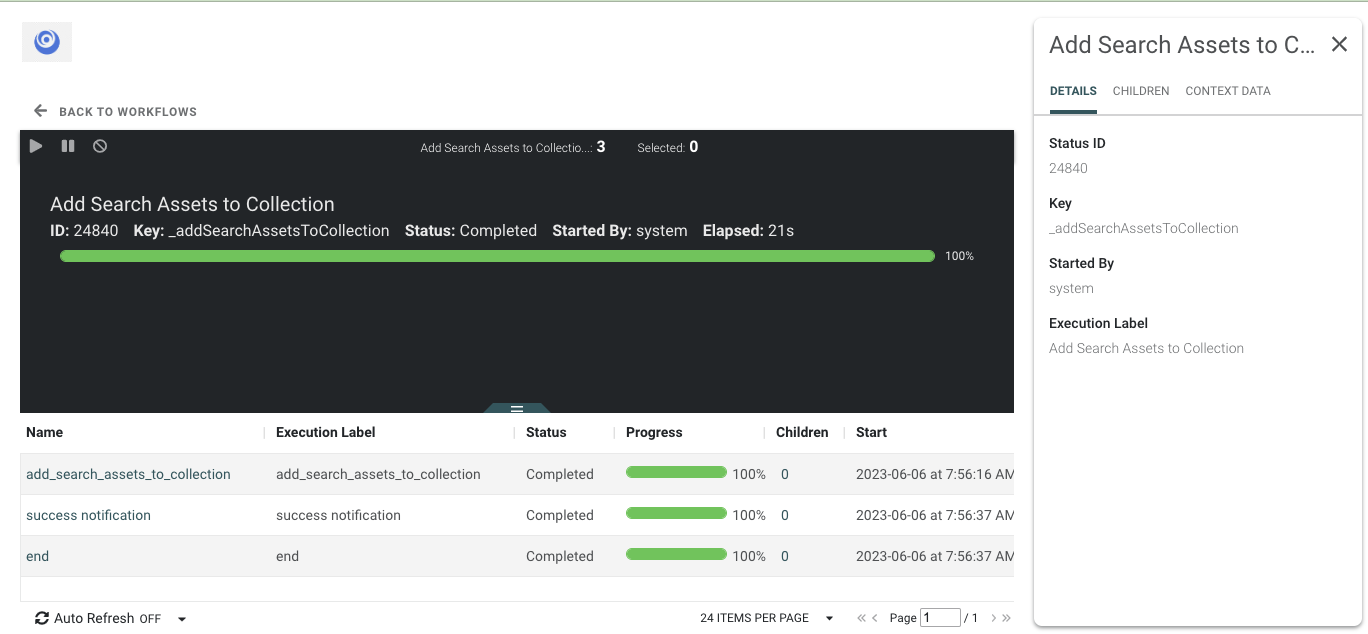
Use the buttons in the upper left to resume, pause, or abandon a step or subflow.
Download Content from the Workflow Interface
Some workflows produce downloadable content. From the Workflow Status page, any workflow with downloadable content displays a download icon, which allows you to download the content directly from the Workflow Status page. Click the download icon on any row that contains downloadable content.
