Forms
Metadata Forms
Display and Search Metadata Forms
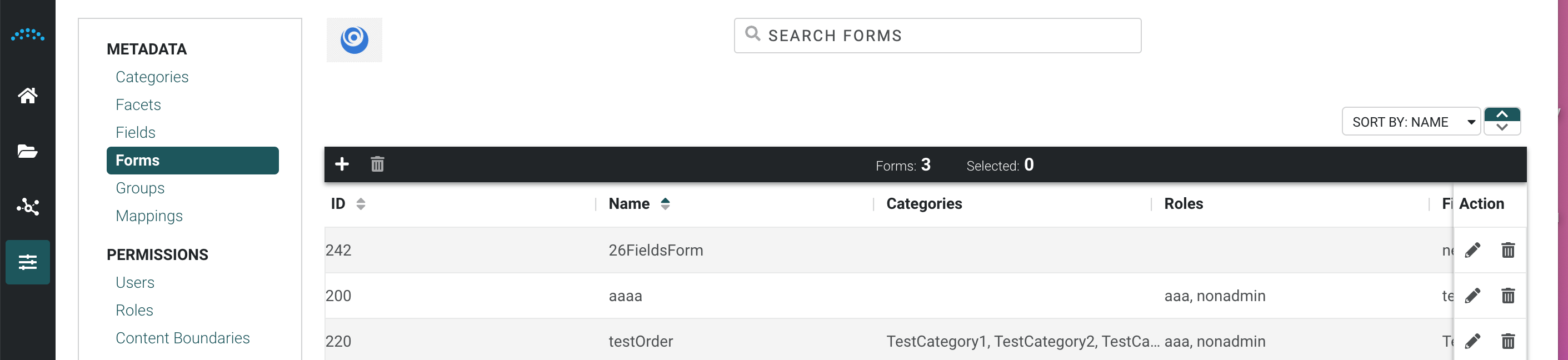
Click Metadata in the left menu, then click Forms to display a list of existing metadata forms.
To search for metadata forms, click in the Search box and enter your search term. For example, there are four forms: Test, Another Test, Test This, and Form. If the text "test" is typed in the box, the first three forms with the word "test" in their names display. If "this" is typed in the box, only the form "Test This" would display.
Create a Metadata Form
- Click Metadata in the left menu, then click Forms to display a list of existing metadata forms.
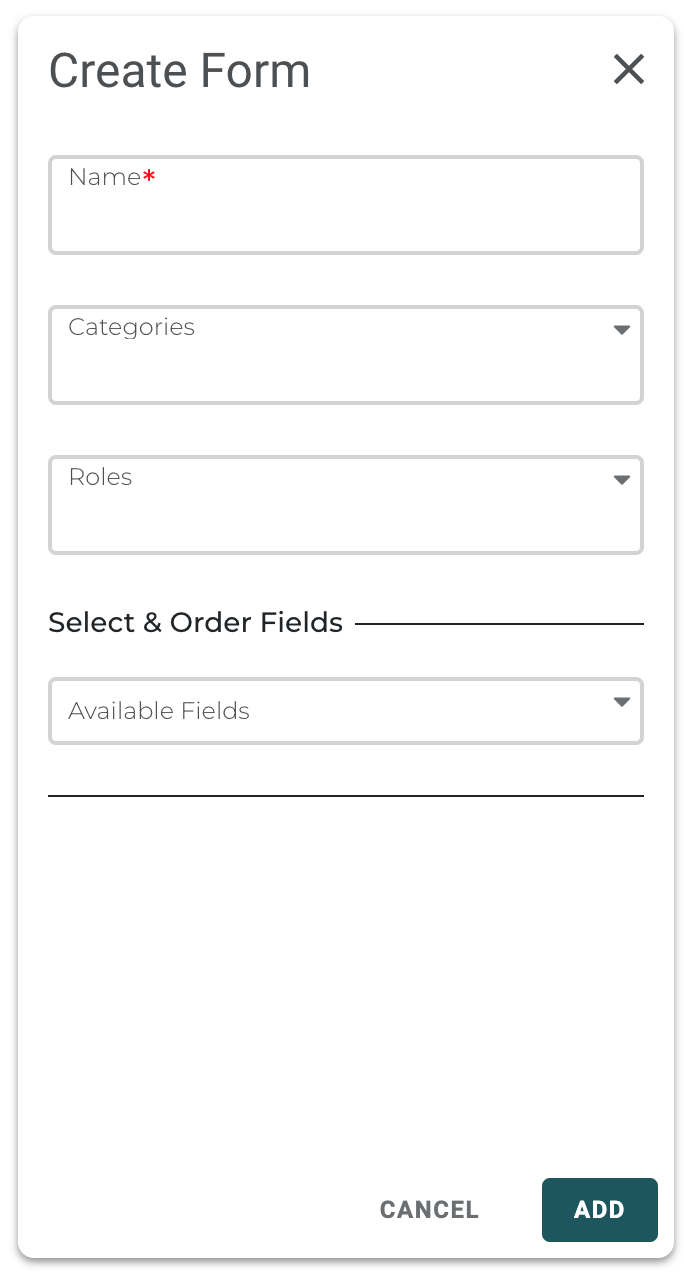
- Click the Add icon at the top left to open the Create Form panel.
- Enter a Name for the new Metadata Form.
- Choose the Categories for the form.
Anytime a metadata form is used for a Reach Engine ingest, the assets will be tagged with the category assigned from the metadata form. Additional categories can also be assigned based on a user's role from the Prelude and Premiere panels.
- Choose the Roles for the form. You may choose multiple roles.
- Choose the Fields you want to associate with the Metadata form.
- Drag-and-drop the fields to define the order of the visible properties.
- Move the slider beside a Metadata Field to make it a required field when the Metadata form is displayed.
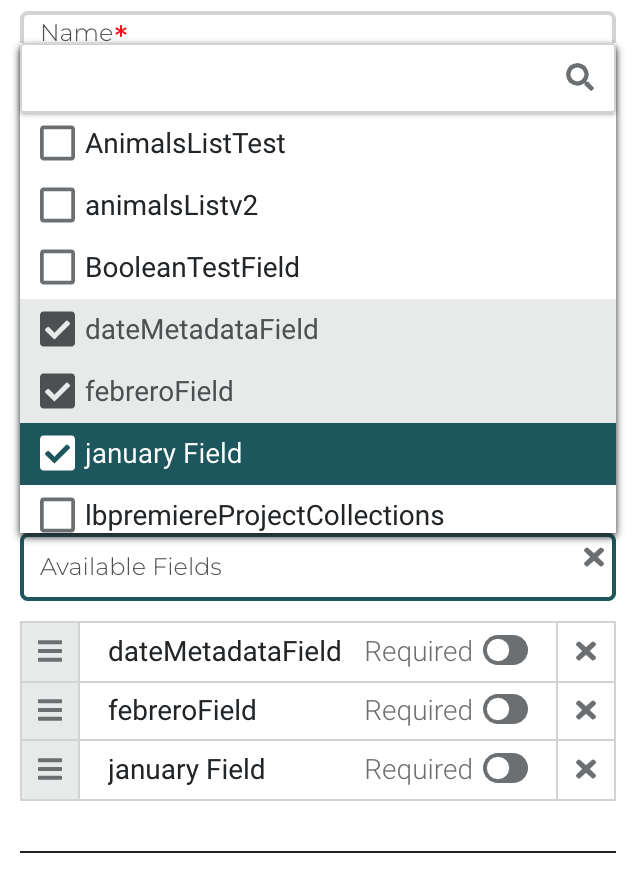
9. Click Add. The new form displays in the list.
Editing or Deleting Forms
To edit or delete a form, select it from the list and click Edit or Delete.