Dynamic Properties
⛔️ WARNING: The capabilities outlined below are for advanced Reach Engine admins. Updates can have serious consequences for your system as well as your content library. Changes should always be tested on development systems prior to implementation. Please do not attempt modifications if you are unsure of outcome. Contact support for clarification and or further assistance.
Dynamic properties can be used for system configurations and workflow variables that need to be updated. Dynamic properties can be modified without restarting Reach Engine.
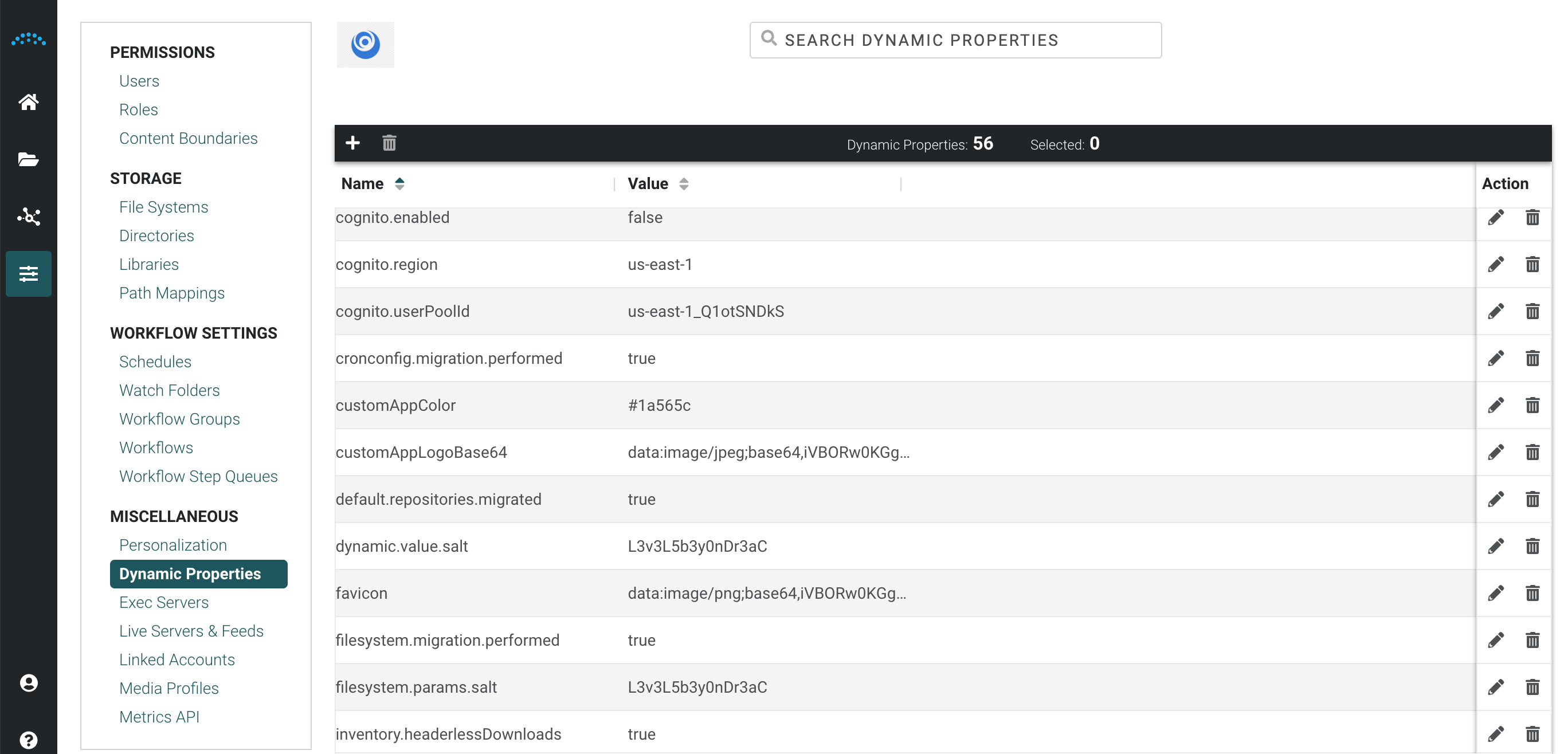
Dynamic Properties
Display and Search Dynamic Properties
- Select the Administration icon on the left, then select Dynamic Properties.
- Select a Dynamic Property. You can:
- Select the Edit icon in the Action column to edit the dynamic property.
- Select the Add icon at the top left to add a new dynamic property.
Create a Dynamic Property
- Select the Administration icon on the left, then select Dynamic Properties.
- Select the Add icon at the top left to add a new Dynamic Property. The Create Dynamic Property panel displays.
- Enter the key and value.
- Select Add.
Enable Feedback Option
Administrators can enable the Feedback option, which lets users provide feedback, request features, vote on feature requests, see what is in progress, and see which features were recently released. The Feedback icon is configured per installation. To configure the Feedback icon for your company, add a dynamic property with the following values:
- Key = feedbackEnabled
- Value = true
Search for a Dynamic Property
To search for a dynamic property, enter the property name in the search field. As you enter text, the list shortens to include only those items that match the entered text.
- System admins can change load thresholds and batch sizes via dynamic properties without restarting a runtime. Every 30 seconds, the services re-read the dynamic properties. First, the property {runtimeNodeId}.{propertyName} is checked, which allows each runtime node to be configured differently. If the node-specific property doesn't exist, {propertyName} is checked. To set the values on specific runtimes, prepend the tuning parameter with the runtime's hostname / IP address. For example a runtime running on my network at 10.30.50.147:9090 would have the following example setting configured:
KEY 10.30.50.147:9090.high.load.cpu.threshold VALUE 80
The properties for the dynamic load service are (default value after the colon). Each of these can now be configured on a per host basis dynamically.
low.load.cpu.threshold:65.0medium.load.cpu.threshold:75.0high.load.cpu.threshold:90.0low.load.batch.allotment:5medium.load.batch.allotment:3high.load.batch.allotment:1default.load.batch.allotment:0